 My Dream Peaks
Connecting other tools
AI agents, MCP and the API
Let AI agents (Claude, ChatGPT, Cursor…) or your own scripts use My Dream Peaks as you — through our MCP server or API — with keys you control and a log of everything they do.
The My Dream Peaks API lets programs you choose work with your data: an AI agent such as Claude or ChatGPT that plans your next trip from what you've climbed, a script that keeps a spreadsheet of your summits, or a tool that logs climbs from somewhere else.
API keys
A program proves it acts for you with an API key. Make keys on Account settings → API keys (or go to /account/api) and press + Create a key:
- Name — what will use it ("Claude on my laptop"), so you recognise it in the log.
- Access — Read only (sees your data and the catalogue, changes nothing) or Read and write (can also log, change and delete your climbs, star peaks, rename trips and tracks).
- Expires — after 30 days, 90 days, a year, or never.
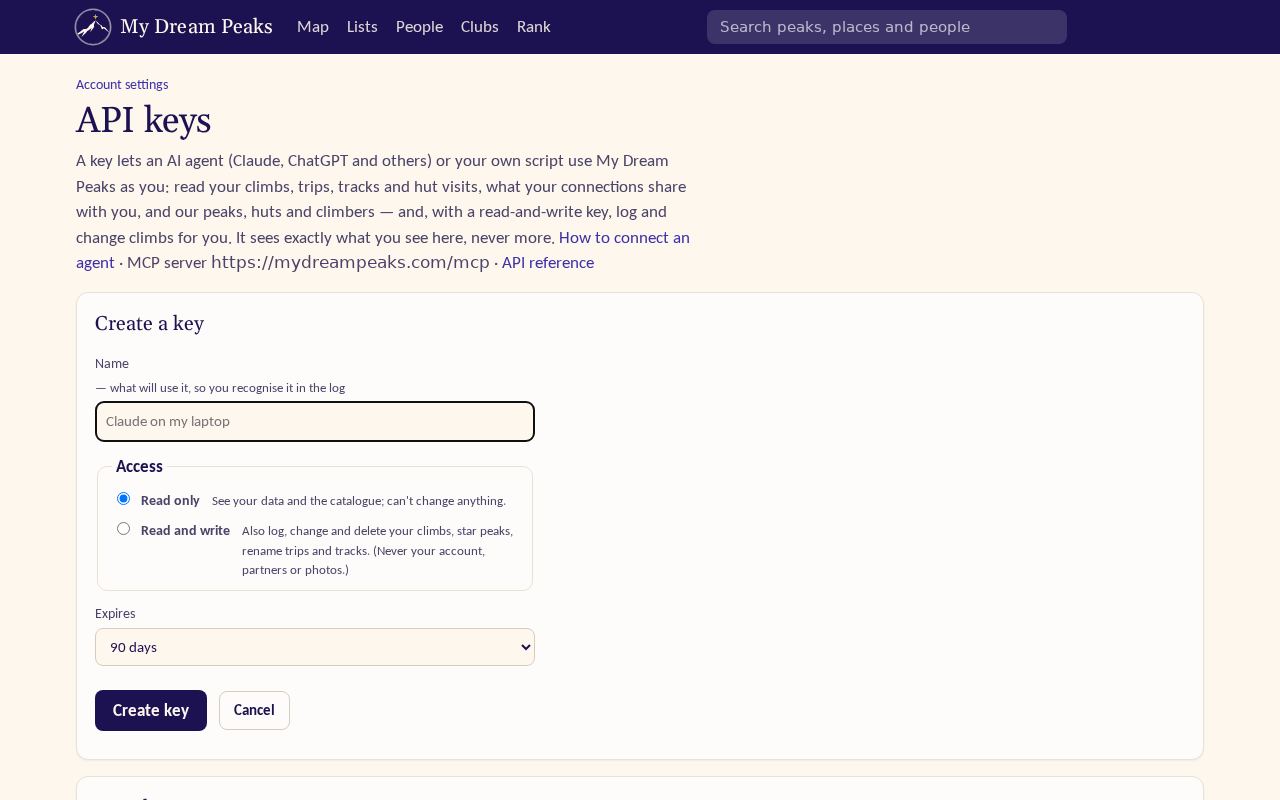
The key is shown once — copy it straight away and keep it like a password. We keep only a fingerprint of it.
A key sees exactly what you see on the site: everything of your own, what your connections share with you, other members' public climbs, and the catalogue. It never sees anyone's email address, and no key can change your account, your partners, photos or clubs.
Suspend, resume, revoke
On the same page, each key has:
- Suspend — the key stops working until you Resume it;
- Revoke — the key ends for good;
- Activity — every request it made: when, what it asked for or changed, whether it worked, and the address and program it came from.
The Recent activity list shows the last 50 requests of all your keys. We keep the log for 12 months (addresses 90 days).
Connecting an AI agent (MCP)
The easiest way for an AI app to use My Dream Peaks is our MCP server — the standard way AI apps plug into other services. It gives the app ready-made tools (search peaks, list my climbs, log a climb…) and explains how our data works.
Address: https://mydreampeaks.com/mcp
Add that address to your app as a connector. The first time, the app opens a My Dream Peaks page: sign in if you aren't already, choose Read only or Read and write, and press Allow. That's all — no key to copy. The app then appears on Account → API keys under connected apps, where you can Suspend or Disconnect it any time and see its Activity.
Claude (claude.ai, desktop and mobile apps)
- Settings → Connectors → Add custom connector.
- Name it My Dream Peaks, paste
https://mydreampeaks.com/mcp, and press Add. - Press Connect, sign in to My Dream Peaks and Allow.
Connectors you add on claude.ai are in the desktop and mobile apps too. In a chat, turn My Dream Peaks on in the tools menu and ask away.
ChatGPT
ChatGPT adds outside services in developer mode:
- Settings → Apps & Connectors → Advanced settings: turn on Developer mode.
- Back in Apps & Connectors, press Create (Add a connector), name it My Dream Peaks, paste
https://mydreampeaks.com/mcpand choose OAuth as authentication. - Sign in to My Dream Peaks and Allow. In a chat, pick the connector from the + menu (developer mode).
ChatGPT's menu names change now and then; look for connectors or apps in Settings. Developer mode isn't available on every ChatGPT plan.
Claude Code
claude mcp add --transport http mydreampeaks https://mydreampeaks.com/mcp
Then type /mcp in Claude Code, pick mydreampeaks and Authenticate — your browser opens the sign-in page.
Cursor and VS Code
One click: Add to Cursor · Add to VS Code — then sign in when the editor asks. Or add a server with the URL https://mydreampeaks.com/mcp by hand.
Apps that take a key instead
Some apps and scripts can't sign in and want a key: make one on Account → API keys and send it as the header Authorization: Bearer mdp_…. For example, Claude Code with a key:
claude mcp add --transport http mydreampeaks https://mydreampeaks.com/mcp --header "Authorization: Bearer mdp_…"
Any other agent
Agents that can call web APIs can use the API description directly: https://mydreampeaks.com/api/v1/openapi.json, with the key in the Authorization header. For example tell a coding agent: "Use the My Dream Peaks API (https://mydreampeaks.com/api/v1/openapi.json) with the key in the environment variable MDP_KEY." The interactive reference is at mydreampeaks.com/api/v1/docs.
Things to ask
- "Which of the Seven Summits haven't I climbed, and what's the normal route on the next easiest one?"
- "Summarise my 2025 season: summits, highest point, nights in huts."
- "Which huts near Mount Kazbek have I not stayed in yet?"
- "Log my climb of Gran Paradiso on 12 July 2025 as a summit, route: normal route from Rifugio Vittorio Emanuele."
- "What did my connections climb this month?"
Give an agent a read-only key unless you want it to change things, and an expiry date. If a key leaks, revoke it — that takes effect at once.
For your own scripts
Send the key in the Authorization header:
curl -H "Authorization: Bearer mdp_…" https://mydreampeaks.com/api/v1/me/climbs?since=2025-01-01
| What | Calls |
|---|---|
| You | GET /me, /me/climbs, /me/climbs/{id}, /me/visits, /me/trips, /me/trips/{id}, /me/tracks, /me/tracks/{id} (with ?geometry=true for the GPS track), /me/connections, /me/feed, /me/lists, /me/stars |
| Changes (read-and-write keys) | POST /me/climbs, PATCH / DELETE /me/climbs/{id}, PUT / DELETE /me/stars/peaks/{id}, PUT / DELETE /me/want/{id}, PATCH /me/trips/{id}, /me/tracks/{id}, /me/visits/{id} |
| Other members | GET /members/{handle}, /members/{handle}/climbs, /members/{handle}/trips — only what they let you see |
| Catalogue | GET /peaks/search?q=, /peaks/{id}, /places/search?q=, /places/{id}, /climbers/search?q=, /climbers/{id}, /lists, /lists/{slug} |
Answers are JSON; lists take limit and offset. Each key may make 120 requests a minute and 10,000 a day; beyond that you get 429 with a Retry-After header. Errors come as {"error": "…"} with the usual HTTP codes (401 bad or expired key, 403 suspended or read-only, 404 not found or not yours).
Checked against the site on 14 November 2026 · All help pages · Questions: [email protected]