 My Dream Peaks
Your climbs and trips
Importing from Garmin
Connect Garmin once and the site finds the summits, passes and huts in your GPS tracks — you confirm what's right.
If you record your days out on a Garmin watch, My Dream Peaks can read your activities and find what you climbed: every summit your track reached, every pass you crossed, every hut you stopped at — going back through your whole history. It also builds your tracks and suggests your trips.
Nothing is ever written to your Garmin account; we only read.
Connecting Garmin
- Open your menu → Import climbs.
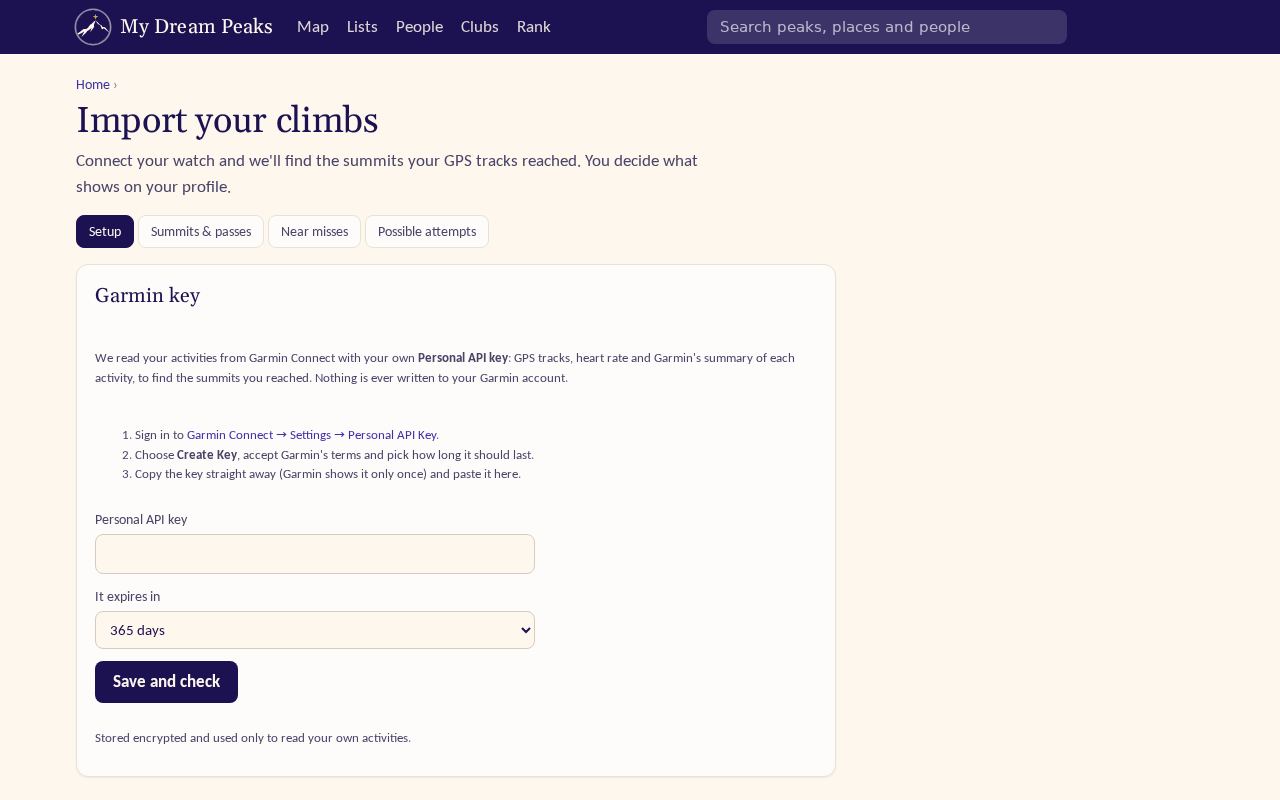
- In another tab, sign in to Garmin Connect → Settings → Personal API Key.
- Choose Create Key, accept Garmin's terms and pick how long it should last.
- Copy the key straight away — Garmin shows it only once — and paste it on the import page, then Save and check.
When the key is about to expire, the import page tells you; create a new one in Garmin Connect and Replace it. To disconnect, Remove the key (you can also delete the downloaded data and the climbs it added), and delete the key in Garmin Connect as well.
Running an import
Press Import now. The first import fetches your whole history, newest first, so today's climbs show up within minutes while older years keep arriving. Import status shows how far it has got. Later imports fetch only what's new — or pick a From date to go further back.
Under Import settings you can:
- import new activities automatically every night;
- hide climbs from resort skiing and snowboarding (and, if you like, ski touring) — a lift-served "summit" usually isn't one you'd count.
We keep a copy of what we downloaded, so when we improve the summit search your tracks are simply checked again — Re-process downloaded tracks — with no new download.
Answering: was I on top?
The import page has four tabs: Setup (the key and settings), Summits & passes, Near misses and Possible attempts.
Your watch isn't always right, and neither is our map. So for each peak found in your tracks, Summits & passes asks On top?:
- Yes — it's a summit; the climb is confirmed.
- Attempt — you went for it but turned back.
- No — you weren't on it; the climb goes away for good.
Leaving it unanswered is fine: the climb counts as found. The other tabs:
- Near misses — your track came near a summit but not quite to it. If you were on top anyway (the watch may have stopped recording), press I was on top.
- Possible attempts — days that headed for a summit and turned back.
- Peaks you said "No" to or skipped are listed too, in case you change your mind.
Your answers always win over what the GPS says, and they're never shown to anyone.
Hiding climbs
Not every bump deserves a place on your profile — the hill behind the office, a ridge you walk the dog over. Tick them and Hide selected. Hidden climbs stay on the import page but aren't on your profile, map or counts. Show selected brings them back.
When the GPS was wrong
Near some borders and airports watches get jammed or spoofed, and a poor signal can throw a track off. Use GPS wrong? on a found peak (or Mark the GPS as wrong on the climb page). A track with a wrong position adds no summits by itself unless you said Yes; with only the altitude wrong, the climb stays.
What comes in
Activities with GPS that could reach a summit or a hut: hikes, climbs, runs, rides, ski tours and the like. Swims, indoor and gym sessions, ball games and paddling are listed but not downloaded. From each activity we use the track, heart rate and Garmin's summary — for the climb's numbers and training load.
Checked against the site on 14 November 2026 · All help pages · Questions: [email protected]